
How to Protect Your Personal Data Online in 2026 (Beginner’s Guide)
It’s 2026, and let’s be honest: the internet sometimes feels a bit like the Wild West, doesn’t it? One minute you’re casually scrolling through a recipe for vegan lasagna, and the next, you’re wondering why an ad for that exact brand of pasta sauce is following you across three different apps. It’s creepy, it’s annoying, and frankly, it can be a little scary. We’ve all heard the horror stories about identity theft or massive data breaches, and it’s easy to feel like privacy is a lost cause. You might feel like throwing your hands up and saying, “Well, my data is already out there, so what’s the point?”
But here’s the good news: it isn’t hopeless. You don’t need to be a tech wizard, a coder, or a hacker to lock down your digital life. You just need to shift your habits a little bit. Think of it like locking your front door. You wouldn’t leave your house wide open just because a burglar might know how to pick a lock, right? The same logic applies online. By taking a few practical, often simple steps, you make yourself a much harder target. In this guide, we aren’t going to bog you down with complex jargon. Instead, we’re going to walk through the essential, everyday moves you can make to reclaim your privacy this year.
The Death of the Traditional Password (and What Replaced It)
Remember when “Password123” or your dog’s name followed by your birth year was considered enough security? Yeah, those days are long gone. In 2026, computing power is so fast that hackers can brute-force simple passwords in milliseconds. The biggest mistake people still make is reusing the same password everywhere. I know, I know it’s impossible to remember fifty different complex codes for fifty different accounts. That’s exactly why you shouldn’t try. If you are still keeping a sticky note under your keyboard or a notebook in your drawer, we need to change that habit today.
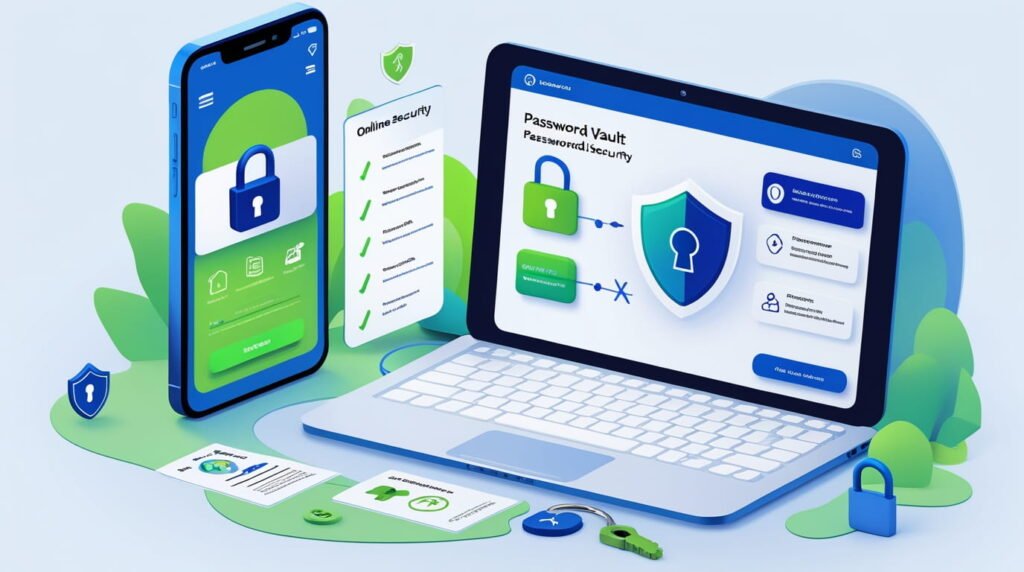
If you aren’t using a password manager yet, this is your sign to start. It’s essentially a digital vault that generates and stores long, gibberish passwords for you (like Xj9#mP2$Lq). You only have to remember one “master” password to get into the vault. It changes the game completely because you never have to “think up” a password again. Furthermore, we are seeing a huge shift toward “Passkeys” this year. This technology uses biometrics like your face ID or fingerprint stored locally on your device to log you in, bypassing typed passwords entirely. If a site offers Passkeys, enable it. It’s not just faster; it’s significantly safer because there is no code for a hacker to intercept remotely.
Why Two Steps Are Always Better Than One
Have you ever tried to log into your email and gotten a text message with a code to prove it’s really you? That’s Two-Factor Authentication (2FA), and it is arguably the single most important setting you can turn on. Think of 2FA as a second deadbolt on your door. Even if someone steals your key (your password), they still can’t get in because they don’t have the alarm code (the 2FA token). It acts as a fail-safe that has saved countless people from having their bank accounts drained or their social media hijacked.
However, not all 2FA is created equal. For years, we relied on SMS text messages for these codes. The problem? SIM swapping attacks where a hacker tricks your phone carrier into switching your phone number to their SIM card are becoming uncomfortably common. Once they have your number, they get your codes. A better alternative is using an authenticator app, like Google Authenticator or Authy. These apps generate codes directly on your phone that change every 30 seconds. They don’t rely on your phone number, making them much harder to hijack. If you want to go full “Fort Knox,” you can buy a hardware security key (like a YubiKey). This is a physical USB stick you plug into your computer to unlock accounts. It’s nearly unhackable, and honestly, it makes you feel like a secret agent every time you use it.
The “Update Later” Trap We All Fall Into
We’ve all done it. You’re in the middle of working, gaming, or watching a movie, and a pop-up appears: “System Update Available.” You sigh, hit “Remind Me Tomorrow,” and go back to what you were doing. Then tomorrow turns into next week, and next week turns into next month. It feels like a nuisance, but those updates are rarely just about adding new emojis or changing the font style.
Software developers usually release updates because they’ve found a hole in their security armor a vulnerability that hackers have discovered and are actively trying to exploit. When you delay an update, you are essentially leaving a window open in your house after the security company has called to tell you the latch is broken. In 2026, automated bots scour the internet looking for devices running outdated software. It’s an automated numbers game. By keeping your operating system, your browser, and your apps on “Auto-Update,” you remove yourself from that pool of easy targets. It’s the lowest-effort, highest-reward thing you can do for your security posture. Don’t let your procrastination be the reason your data gets compromised.
Spotting the New Wave of AI-Driven Scams
Phishing used to be easy to spot. You’d get an email from a “Prince” offering you millions of dollars, written in broken English with seventeen exclamation marks. You’d laugh and delete it. But the game has changed drastically with the rise of Artificial Intelligence. Today, scammers use AI tools to write perfectly grammar-checked, professional-sounding emails that look exactly like they came from your bank, Netflix, or your boss. They copy the logos, the footers, and the tone perfectly.
Even scarier is the rise of AI voice cloning. You might get a call that sounds exactly like your frantic family member asking for money for an emergency. It’s terrifyingly realistic and pulls on your heartstrings. So, how do you protect yourself against a robot that sounds human? You have to verify everything. If you get an urgent email from “PayPal” saying your account is locked, don’t click the link. Close the email, open your browser, and type in paypal.com manually. If there’s actually an issue, the notification will be there. If you get a suspicious call from a “loved one” asking for a wire transfer, hang up and call them back on their known number. We have to be more cynical than ever before. If an interaction relies on urgency “Act now or lose your account!” it is almost certainly a scam designed to bypass your critical thinking.
Mastering Your Social Media Settings
Social media is where the line between “sharing” and “oversharing” gets blurry. We love updating our friends, but we often forget that data brokers and bad actors are watching, too. The default settings on most platforms are designed to make your content as public as possible because that helps their algorithm. You need to go in and manually tighten the screws to ensure you aren’t broadcasting your life to strangers.
Here is a quick checklist of adjustments you should make right now to lock down your profiles:
- Review Your Audience: Change your default post visibility from “Public” to “Friends Only.” There is rarely a good reason for a stranger to see your vacation photos or know your daily routine.
- Turn Off Location Tagging: Stop letting people (and apps) know exactly where you are in real-time. If you want to share a location, post the photo after you leave the place.
- Audit Your App Permissions: Go into your settings and look at the “Apps and Websites” connected to your account. Remove any old quizzes or games you played five years ago; they likely still have access to your data.
- Hide Your Personal Details: Does Facebook really need to display your full birth date, email address, and phone number? Hide these from your profile to prevent identity thieves from piecing together your life.
- Limit Past Posts: Most platforms have a “Limit Old Posts” feature that retroactively changes everything you’ve ever posted to “Friends Only” in one click.
The Perils of Public Wi-Fi and the VPN Solution
Picture this: You’re at a coffee shop or waiting for a flight at the airport. You open your laptop, and you see a network called “Free Super-Fast Wi-Fi.” You connect, check your bank balance, and maybe buy a pair of shoes. The problem? You have no idea who actually set up that network. It could be the legitimate venue, or it could be the guy sitting in the corner with a laptop intercepting all the traffic flying through the air.
Public Wi-Fi is notoriously insecure. It’s essentially an open conversation that anyone with the right software can listen in on. Does that mean you can never use Wi-Fi at a hotel? Not necessarily, but you need a shield. This is where a Virtual Private Network (VPN) comes in. A VPN acts like a secure, opaque tunnel for your internet traffic. When you switch it on, your data is encrypted before it leaves your device. Even if a hacker is snooping on the Wi-Fi network, all they will see is scrambled code that makes no sense. In 2026, using a VPN on public networks should be as automatic as putting on a seatbelt. If you don’t have a VPN, stick to your phone’s cellular data it’s much harder to intercept than open Wi-Fi.
Taking Control of Your Digital Footprint
Have you ever Googled yourself? It’s a weird experience. You might find your current address, phone number, and even family members listed on “people search” sites. These are data brokers companies that scrape public records and social media to build a profile on you, which they then sell to advertisers, insurers, or anyone with a credit card. It feels like an invasion of privacy because it is.
Cleaning this up takes a bit of elbow grease, but it’s worth it. You can manually opt out of these sites, though they often make the process intentionally difficult, requiring you to fax in forms or upload ID (ironic, right?). A more efficient route for many people is using data removal services. These are subscription services that scan the web for your info and automatically send “take down” requests on your behalf. They keep monitoring and re-sending requests because data brokers often re-add your info after a few months. Whether you do it manually or hire a service, reducing this footprint minimizes the chances of doxxing and targeted harassment.
Conclusion: Progress Over Perfection
If you’ve read this far and feel a little overwhelmed, take a deep breath. You don’t have to do everything on this list today. In fact, trying to change all your digital habits overnight is a recipe for burnout. Security isn’t a destination; it’s a journey. Start small. Maybe this week you just download a password manager and update your banking login. Next week, you can tackle 2FA on your email.
The goal isn’t to become an invisible ghost online that’s pretty much impossible in the modern world anyway. The goal is simply to make yourself a harder target than the next person. Hackers are opportunistic; they are looking for unlocked doors and open windows. By sliding the deadbolt effectively, you ensure that your personal data stays exactly where it belongs: with you. Stay safe out there!
Frequently Asked Questions (FAQ)
1. Is Incognito Mode actually private?
Not really. Incognito mode (or Private Browsing) only stops your browser from saving your history on your device. It does not hide your activity from your internet service provider (ISP), your employer (if you’re on work Wi-Fi), or the websites you visit. They can still track you. For real privacy, you need a VPN.
2. Are free VPNs safe to use?
Generally, no. Running a VPN service costs a lot of money (servers, maintenance, engineering). If a VPN is free, they have to make money somehow, and usually, that means they are tracking your data and selling it to advertisers which defeats the whole purpose of using a VPN. It’s better to pay a small monthly fee for a reputable service.
3. Do I really need antivirus software in 2026?
If you are using a modern computer (like Windows 11 or a Mac), the built-in security (Windows Defender or XProtect) is actually very good for the average user. However, if you download a lot of files from random sites or aren’t tech-savvy, paid antivirus can offer an extra layer of “phishing protection” that can be helpful.
4. What should I do if I think my email was hacked?
Act fast. First, change your password immediately. If you use that password on other sites, change those too. Second, check your account settings to see if the hacker added a “forwarding address” (so they get copies of your emails) and remove it. Finally, turn on Two-Factor Authentication (2FA) if it wasn’t on before.
5. How often should I change my passwords?
Surprisingly, experts now say you shouldn’t change them constantly if they are strong and unique. Changing passwords too often leads to “password fatigue,” where people start using weaker passwords (like Summer2025, Autumn2025). Only change a password if you suspect a breach or if a service notifies you of a leak.