
Password Managers: Are They Safe and Which One Should You Choose?
We have all been there. It’s Tuesday morning, you are trying to log into your bank account or that streaming service you haven't used in a month, and you hit a wall. You type in your usual password you know, the one with your childhood street name and the year you graduated. Incorrect. Okay, maybe you capitalized the first letter? Incorrect. You sigh, try adding an exclamation point at the end? Account Locked.
It is infuriating, isn't it? The sheer number of accounts we have to manage these days is ridiculous. The average person has over 100 digital accounts, and our brains simply weren't evolved to memorize 100 unique, complex strings of random characters. So, we cheat. We use "Password123," or we recycle the same password for everything. It feels convenient until you hear about a data breach and realize that because one door was unlocked, every door in your life is now wide open.
This is where password managers come in. You have probably heard techy friends rave about them, but there is always that lingering doubt in the back of your mind: "Is it really safe to put all my keys in one basket?" It feels counterintuitive. Today, we are going to strip away the jargon and look at whether these digital vaults are actually secure, how they work, and which one deserves a spot on your phone.
The "All Your Eggs in One Basket" Fear
Let’s tackle the elephant in the room immediately. The biggest reason people hesitate to use a password manager is the fear of a single point of failure. The logic seems sound: "If a hacker gets into my password manager, they get everything. My email, my bank, my Amazon account. Isn't that dangerous?"
Technically, yes, it is a risk. But you have to compare it to the alternative. If you aren't using a manager, you are likely reusing passwords. If you use the same password for a throwaway forum account and your email, and that forum gets hacked (which happens constantly), the hacker now has your email password. Once they have your email, they can reset the password for every other account you own. That is a much higher risk.
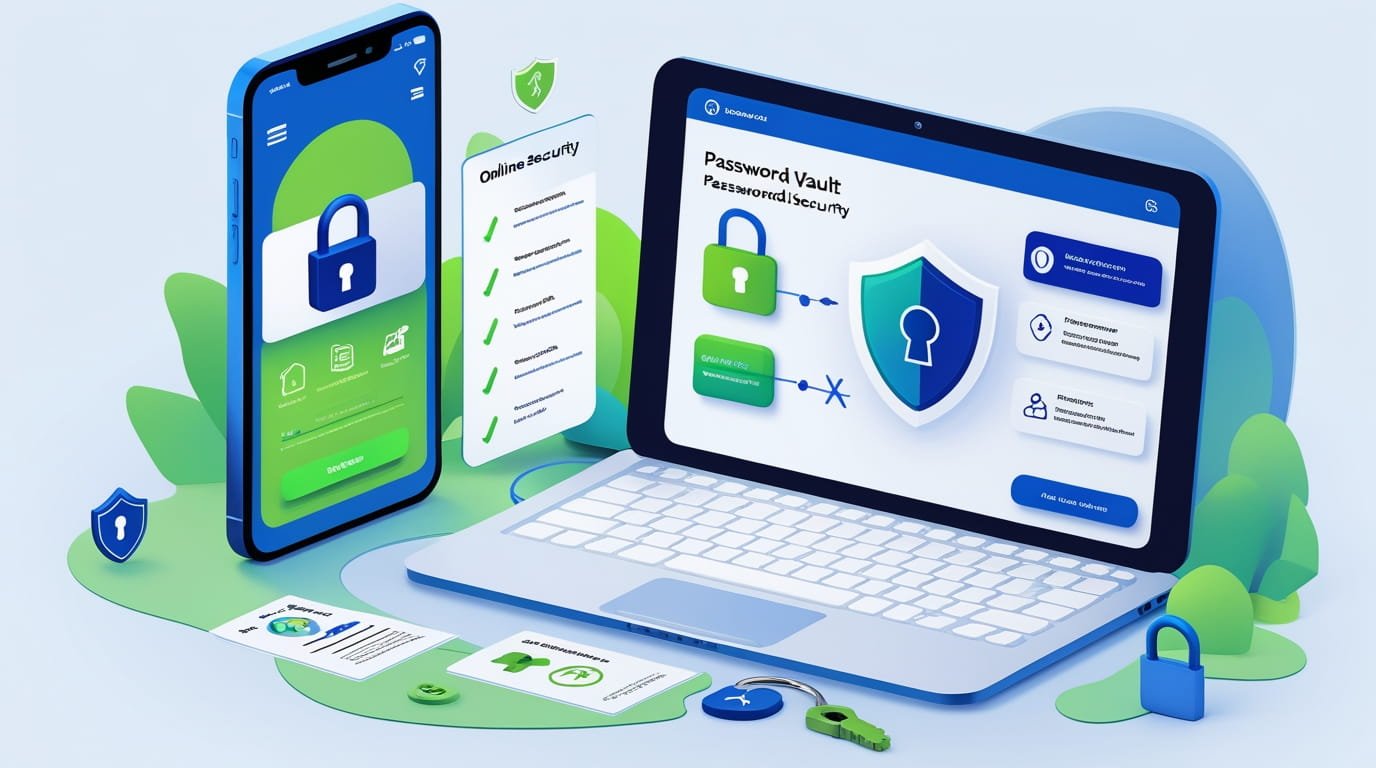
Password managers operate on a security model called "Zero-Knowledge." This is the secret sauce. When you save a password in a reputable manager like Bitwarden or 1Password, the data is encrypted (scrambled) locally on your device before it gets sent to their cloud servers. The company literally cannot see your passwords. They don't have the key; only you do. That key is your Master Password. If the company gets hacked and their servers are stolen, the hackers just get a pile of digital gibberish that is mathematically impossible to read without your specific Master Password. So, yes, all your eggs are in one basket, but that basket is essentially a titanium vault buried in concrete, and you are the only person in the universe who knows the combination.
How the Magic Actually Works
So, what does using one actually look like in real life? It’s surprisingly boring, in the best way possible. You install a browser extension on your laptop and an app on your phone. You create one incredibly strong "Master Password." This is the only password you ever have to memorize again. Make it a sentence, like "MyBlueDogLikesToEatPizzaInRome2026!" something long and weird that a computer can't guess.
Once you are in, the manager takes over. When you sign up for a new account say, for a new shoe store the manager pops up and says, "Hey, want me to generate a password for you?" You click yes, and it spits out something like Xj9#mP2$Lq8vZ*. You don't need to know what it is. You save it, and the next time you visit that site, the manager autofills it for you. You are suddenly using military-grade encryption for a shoe store account, and it took zero effort. It’s like having a digital butler who remembers everything so you can free up brain space for more important things, like remembering song lyrics from the 90s.
The Convenience Factor vs. The Learning Curve
I won't lie to you; the first week is a bit of a chore. You have to go through your important accounts email, banking, social media and change your old, weak passwords to new, randomized ones generated by the manager. It takes a lazy Sunday afternoon to get everything sorted. But once that initial hump is over, the convenience is addictive.
Imagine never having to click "Forgot Password" again. Imagine logging into Netflix on your friend's TV by just opening your phone and reading the code, rather than trying to type it in with a remote control. Password managers also act as a defense against phishing sites. If you click a link that looks like Google but is actually a fake scam site, your password manager won't autofill. It knows the difference. It sees that the website address is wrong and refuses to give up your credentials. It’s a passive safety net that protects you even when you aren't paying attention.
Cloud-Based vs. Local Storage: Picking Your Flavor
Not all password managers are created equal. Broadly speaking, they fall into two camps: Cloud-based and Local-only. Cloud-based managers (like 1Password, Bitwarden, or Dashlane) sync your data across the internet. This means if you save a password on your laptop, it instantly appears on your iPhone. This is what 99% of people want. It offers the perfect balance of security and ease of use.
Local-only managers (like KeePass) store the encrypted database file right on your hard drive. It never touches the cloud. This is technically "safer" because a hacker would have to physically hack your specific computer to get the file. However, it is a massive pain in the neck. If your computer dies and you didn't back up that file? Poof. Gone. Also, trying to get that password from your computer to your phone requires manual syncing or emailing files to yourself, which defeats the purpose. Unless you are a spy or a cybersecurity ultra-purist, stick to the reputable cloud-based options. The tiny theoretical risk is worth the massive practical benefit of having your passwords everywhere you go.
Top Contenders: Which One Should You Actually Download?
Okay, enough theory. You want names. There are dozens of options on the app store, but in 2026, the market has settled around a few clear winners. I’ve tested almost all of them, and the "best" one really depends on your budget and your vibe.
Here is a breakdown of the top recommendations based on different needs:
- Bitwarden (The Best Overall Value): This is the darling of the tech world. It is open-source, which means its code is public for security experts to audit. It has a fantastic free tier that gives you unlimited passwords on unlimited devices. It’s not the prettiest app, but it is rock-solid, trustworthy, and free.
- 1Password (The Polished Choice): If you don't mind paying a few dollars a month, 1Password is beautiful. The user interface is slick, it handles "Passkeys" (the future of login tech) incredibly well, and their "Travel Mode" feature lets you hide vaults when crossing borders. It’s great for families too.
- Dashlane (The Feature-Packed One): Dashlane tries to do everything. It includes a VPN, dark web monitoring, and mass password changing. It’s expensive, but if you want an "all-in-one" digital security suite, it’s a strong contender.
- Apple/Google Built-in Managers: If you live entirely in the Apple ecosystem (iPhone, Mac, iPad), the iCloud Keychain is actually very good now. It’s free and built-in. The same goes for Google Password Manager if you use Chrome and Android. They lack some advanced features, but they are better than nothing.
A Note on the "LastPass" Incident
We have to address the history here. You might have heard of LastPass. For years, they were the king of password managers. However, they suffered a significant security breach a few years back where hackers actually stole user vault data. While the passwords were encrypted, the metadata (website URLs, etc.) wasn't fully protected in the way people expected.
This was a wake-up call for the industry. Since then, many users migrated to Bitwarden and 1Password because those companies had stricter "Zero-Knowledge" architectures where everything (even the website names) is encrypted. Does this mean LastPass is unsafe now? Probably not; they have likely beefed up security more than anyone else since then. But trust is hard to rebuild. It serves as a reminder: no system is unhackable, which is why choosing a company with a transparent, security-first architecture is vital.
The Critical Step: Two-Factor Authentication (2FA)
If you install a password manager, you are building a fortress. But you need to make sure the front gate to that fortress is locked tight. Your Master Password is strong, yes, but what if someone installs a keylogger on your computer and steals it?
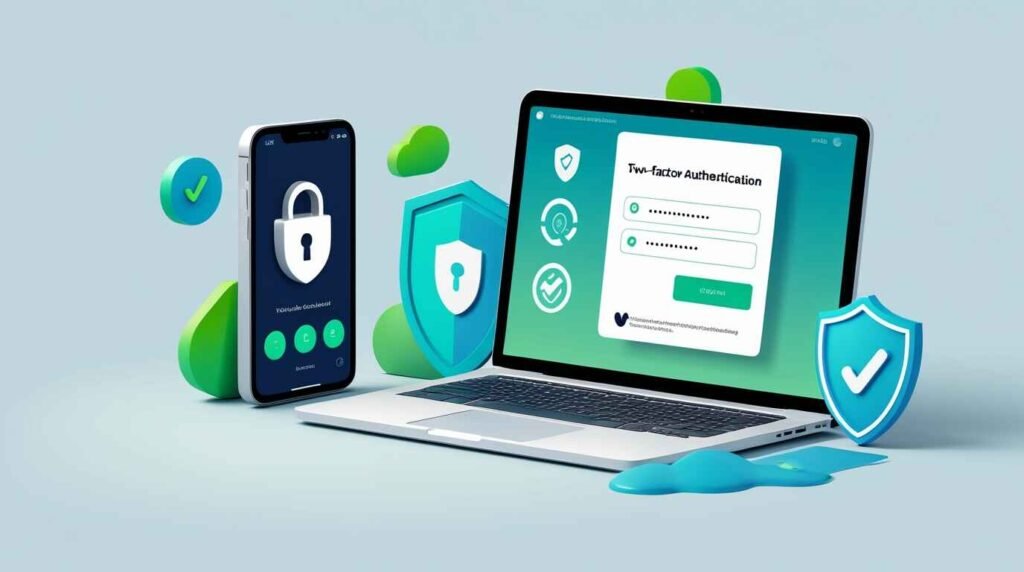
You must enable Two-Factor Authentication (2FA) on your password manager account. This means that to log in on a new device, you need your Master Password plus a code from an authenticator app (or a hardware key like a YubiKey). This makes your vault virtually impenetrable. Even if a hacker has your Master Password, they can't get in without your phone. It is the single most important setting to toggle on the moment you sign up. Do not skip this step. It turns a "pretty safe" setup into a "Fort Knox" setup.
The Future: Passkeys and Beyond
We are living in a transition period. You might have noticed that some sites are asking you to create a "Passkey" instead of a password. A Passkey uses the biometrics on your device (FaceID or Fingerprint) to create a secure login token. There is nothing to type, and nothing to steal.
The best password managers are already adapting to this. They can store your Passkeys right alongside your passwords. This is important because it means you aren't locked into one ecosystem. If you store a Passkey in Apple's Keychain, it's hard to use it on a Windows computer. If you store it in 1Password or Bitwarden, you can use it anywhere. As we move into a password-less future, having a third-party manager is actually going to become more useful, acting as your universal digital identity wallet rather than just a list of codes.
Conclusion: Just Start Today
If you are still on the fence, I get it. Changing habits is hard. It feels like a lot of work to set up. But think about the alternative. Think about the panic of losing access to your email. Think about the frustration of trying to guess your login for the tenth time.
You don't have to do it all at once. Download one of the apps mentioned above start with the free version of Bitwarden if you're unsure and just save one password. Maybe your Netflix login. See how it feels. Let it autofill for you once. I promise, the moment you see that little box fill itself in magically, you will wonder why you spent so many years typing things out like a caveman. Secure your digital life, clear out the clutter in your brain, and join the side of the internet that actually sleeps soundly at night.
Frequently Asked Questions (FAQ)
1. What happens if I forget my Master Password?
This is the scary part: usually, you are out of luck. Because of the "Zero-Knowledge" security model, the company does not know your password and cannot reset it for you. If you lose it, you lose your data. This is why it is crucial to write your Master Password down on a physical piece of paper and store it somewhere safe, like a fireproof box or a literal safe, just in case your memory fails you.
2. Is it safe to save my credit card numbers in a password manager?
Yes, it is generally very safe. In fact, it is safer than typing it into websites every time. When you type it, keylogger malware can steal it. When a password manager autofills it, the data is encrypted until the moment it is used. Plus, it saves you from having to get your wallet out every time you want to buy pizza.
3. Why shouldn't I just use the browser's built-in password manager (like Chrome or Safari)?
You can, and it's better than nothing! However, dedicated password managers like Bitwarden or 1Password offer more flexibility. If you use Chrome to save passwords, it's annoying to access them on an iPhone. If you use Safari, it's annoying to access them on a Windows PC. A third-party manager works seamlessly across all browsers and devices.
4. What happens if the password manager company goes out of business?
Most reputable managers allow you to export your data. You can download a .CSV or .JSON file containing all your passwords at any time. It is a good habit to do this once a year and keep that file on an encrypted USB drive, just as a "doomsday" backup plan. If the company shuts down, you take your file and import it into a different app.
5. Does using a password manager make me a target for hackers?
Hackers do target password manager companies, trying to find vulnerabilities in their code. However, they rarely target individual users of password managers because it is too hard. It is much easier for them to target people who don't use managers, because those people usually have weak, reused passwords like "Password123" that can be cracked in seconds. You are safer in the herd of encrypted users than wandering alone with a weak password.